


Getting started with Roam smart tracker


About Roam Smart Tracker
Roam is a Bluetooth crowd-location tracker (not GPS). It securely locates your items using millions of nearby Apple or Android devices through the Find My or Find Hub networks. Because it relies on nearby devices, location updates may be intermittent, especially in quieter areas.
⚠️ Note: Roam can be connected to one network at a time — Apple or Google.
Setup Video
Device Controls
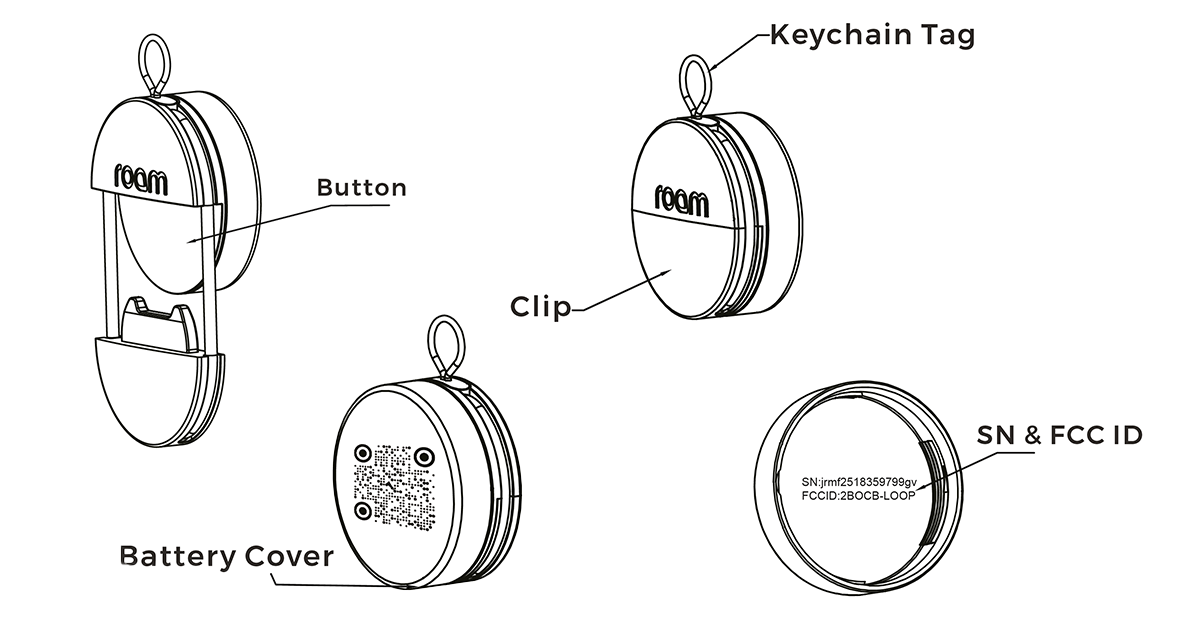
Button Actions
Power On
- Press and hold the button for 5 seconds.
- 🔊 1 short beep
Power Off
- Press the button 5 times quickly (within 2 seconds).
- 🔊 1 long beep
Factory Reset
- Press the button 4 times.
- After the short beep, press and hold for 8 seconds.
- 🔊 1 short beep after the 2nd press, then 6 beeps after the long press
Pairing with an Android Device
Pairing requires a phone or tablet running Android 9 or later. Once paired, locate items using the Find Hub app.
⚠️ Before you start:
- Turn on Bluetooth and Location.
- Enable Scan for nearby devices (Settings → Google → All services).
- Update Google Play Services to the latest version. Go to All Services → System Services → Google Play Services, or check the Play Store listing.
1. Turn On the Roam
Press and hold the button for 5 seconds — it will beep and power on.
2. Add the Roam
- Place your Roam next to your Android device.
- Wait for the pop-up showing Roam Smart Finder, tap Connect, and follow the on-screen instructions.
- After naming it and choosing a category, you'll find your Roam in the Find Hub app.
3. Set Up the Lost & Found QR Code
Scan the QR code on the back of your device and follow the on-screen instructions.
Find Your Roam
- Select your Roam in Find Hub and tap Play sound — your Roam will buzz.
- View and navigate to its location using your phone's maps.
Enable Lost Mode
- In Find Hub, select your Roam and tap Mark as Lost.
- Follow the prompts to add your contact information.
- Activate your Lost & Found QR code at app.roamsmarttracker.com/signin.
Note: The Lost Mode option only appears when the Roam is away from your paired Android device. You'll get a notification when it's detected by the Find Hub network.
If you find a lost Roam, turn on Bluetooth and open the Find Hub app. It will detect the tracker and show the owner's contact information.
Remove Your Roam
- Open Find Hub, tap your item, then tap Device details.
- Tap Remove from Find Hub, then tap Remove to confirm.
After removal, the tracker beeps and enters pairing mode (it does not power off). If you don't re-pair within 10 minutes, it goes to standby and becomes undiscoverable. To re-enter pairing mode, press the button once — you'll hear a beep when it's ready to connect.
Pairing with an iOS Device
Pairing requires an iPhone or iPad running the latest version of iOS or iPadOS (macOS is also supported on Mac). Once paired, locate items using the Apple Find My app.

1. Turn On the Roam
Press and hold the button for 5 seconds — it will beep and turn on.
2. Add the Roam
- Place your Roam next to your iOS device.
- Open the Find My app and tap "+" → "Add Other Item".
- Type a name, select an emoji, then tap Agree to link the item to your Apple ID.
- After setup, you'll find your Roam in the Find My app.
3. Set Up the Lost & Found QR Code
Scan the QR code on the back of your device and follow the on-screen instructions.
Find Your Roam
- Select your Roam and tap Play Sound to buzz the tracker.
- View and navigate to its location using Maps.
Enable Lost Mode
- Open Find My, tap Items, then select your item.
- Under Lost Mode, tap Enable.
- Follow the prompts to enter a phone number or email, customize the message, and tap Activate.
- Activate your Lost & Found QR code at app.roamsmarttracker.com/signin.
Remove Your Roam
- Open Find My → Items → select your item.
- Tap Remove Item, then tap Remove to confirm.
After removal, the tracker beeps and enters pairing mode (it does not power off). If you don't re-pair within 10 minutes, it goes to standby. To re-enter pairing mode, press the button once — you'll hear a beep when it's ready to connect.
Contact Us
Need help? Email our support team at care@roamsmarttracker.com.
⚠️ WARNING — This product contains a coin (button) battery.
- Ingestion hazard: Death or serious injury can occur if swallowed. Internal chemical burns may occur in as little as 2 hours.
- Keep new and used batteries out of reach of children.
- If a battery may have been swallowed or inserted, seek immediate medical attention.
Do not ingest the battery. If the battery door does not close securely, stop using the product and keep it away from children.
This product is not a toy or edible. Large metal parts or certain phone cases can interfere with Bluetooth signal strength. The lithium battery inside carries a risk of explosion if misused — do not expose to direct heat or mechanical stress. Do not disassemble; doing so may cause electric shock and void your warranty.
Privacy
The Apple Find My network uses advanced encryption so that no one else — not even Apple or Roam — can view the location of your Roam.
Google's Find Hub network uses end-to-end encryption that prevents third parties from accessing data while it's transferred. Neither Roam nor Google can access the location reported by the Find Hub network.
Regulatory Notices
FCC Caution
Any changes or modifications not expressly approved by the party responsible for compliance could void the user's authority to operate this equipment. This device complies with Part 15 of the FCC Rules. Operation is subject to the following two conditions:
- This device may not cause harmful interference.
- This device must accept any interference received, including interference that may cause undesired operation.
The device has been evaluated to meet general RF exposure requirements and can be used in portable exposure conditions without restriction.
Note: This equipment has been tested and found to comply with the limits for a Class B digital device, pursuant to Part 15 of the FCC Rules. These limits are designed to provide reasonable protection against harmful interference in a residential installation. If interference occurs, try:
- Reorienting or relocating the receiving antenna.
- Increasing the separation between the equipment and receiver.
- Connecting the equipment to an outlet on a different circuit from the receiver.
- Consulting the dealer or an experienced radio/TV technician for help.
European Union — Disposal Information
The symbol indicating separate collection means your product and/or its battery must be disposed of separately from household waste. Take it to a collection point designated by local authorities to conserve resources and protect human health and the environment.
CE and UKCA — Declaration of Conformity
Roam Smart Tracker hereby declares that this product complies with the essential requirements and other relevant provisions of Directive 2014/53/EU and the Radio Equipment Regulations (RER) SI 2017 No. 1206.
Legal Notices
Apple
Use of the Works with Apple badge means that a product has been designed to work specifically with the technology identified in the badge and has been certified by the manufacturer to meet Apple Find My network product specifications and requirements. Apple is not responsible for the operation of this device or its compliance with safety and regulatory standards.
To use the Apple Find My app to locate this item, the latest version of iOS, iPadOS, or macOS is recommended. The Find Items app on Apple Watch requires the latest version of watchOS.
Apple, Apple Find My, Apple Watch, Find My, iPhone, iPad, iPadOS, Mac, macOS, and watchOS are trademarks of Apple Inc., registered in the U.S. and other countries. iOS is a trademark or registered trademark of Cisco in the U.S. and other countries and is used under license.
Android
Works with Google's Find Hub app on an Android phone or tablet running Android 9 or later with Google Play Services. Find Hub requires Location services and Bluetooth to be turned on, plus a cellular or internet connection. Availability may vary by country and age eligibility.
This product has been certified by BuckleBeats Ltd (trading as Roam Smart Tracker) to meet Google's compatibility standards. Google is not responsible for the operation of this product or its compliance with any applicable safety or other requirements. Google's "made for" badge, Android, Find Hub network, and related marks are trademarks of Google LLC.