


How to enable & disable lost mode


Lost Mode in the Roam QR App
Lost Mode lets your Roam device's QR code share your contact details with whoever finds your lost item. For privacy, your details are only visible while Lost Mode is enabled.
Enable Lost Mode
Use this when your item goes missing.
- Open the Roam QR app at app.roamsmarttracker.com.
- Select the tracker you want to mark as lost.
- Tap Enable Lost Mode.
- Confirm your contact details and add a lost message.
- Your device is now flagged as lost. You'll receive email notifications if someone scans it.
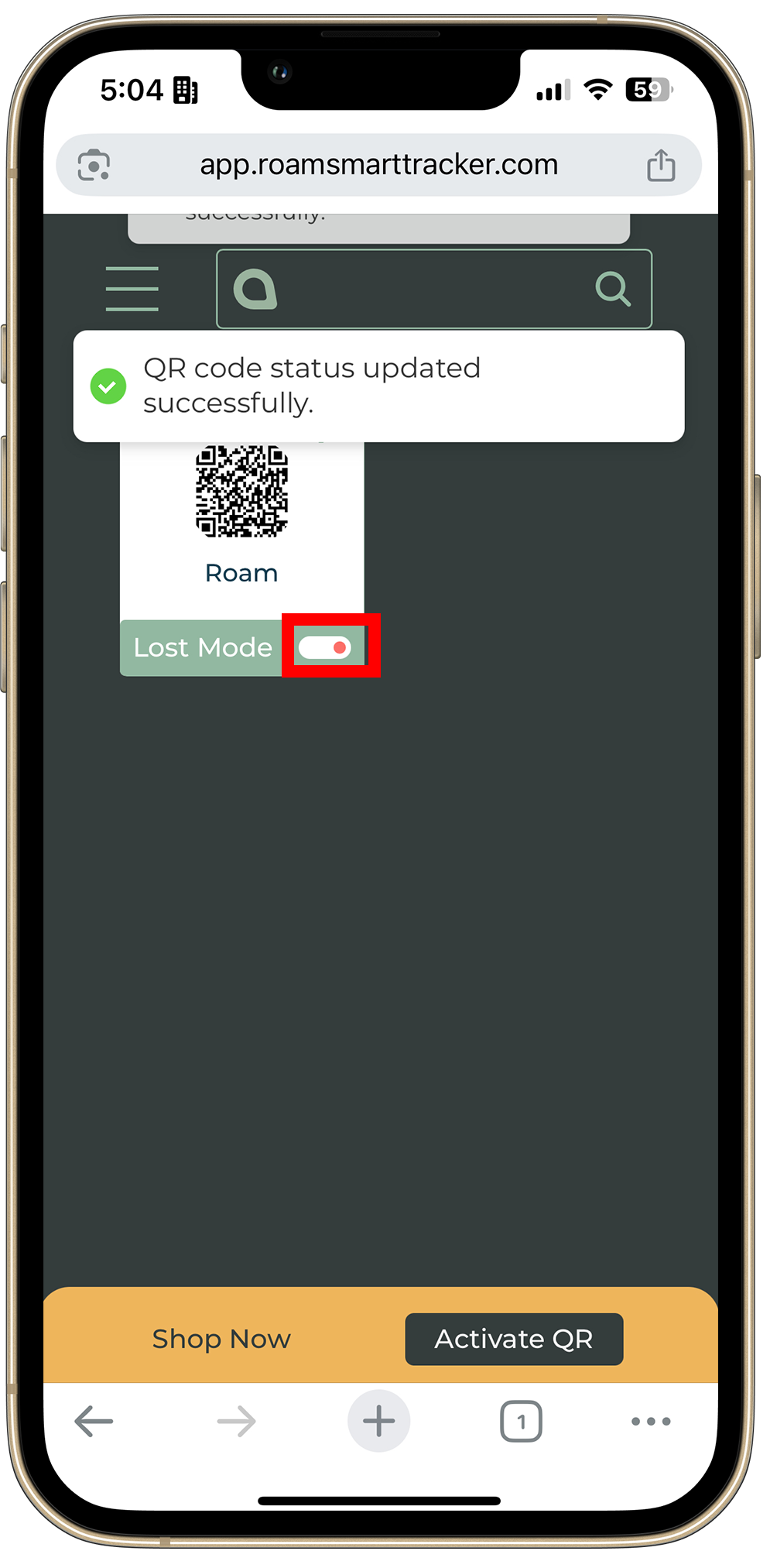
⚠️ Tip: Mark Roam emails as safe (not spam) so notifications always reach your inbox.
Disable Lost Mode
Use this once you've recovered your item.
- Open the Roam QR app at app.roamsmarttracker.com.
- Select your tracker.
- Toggle Disable Lost Mode and confirm.
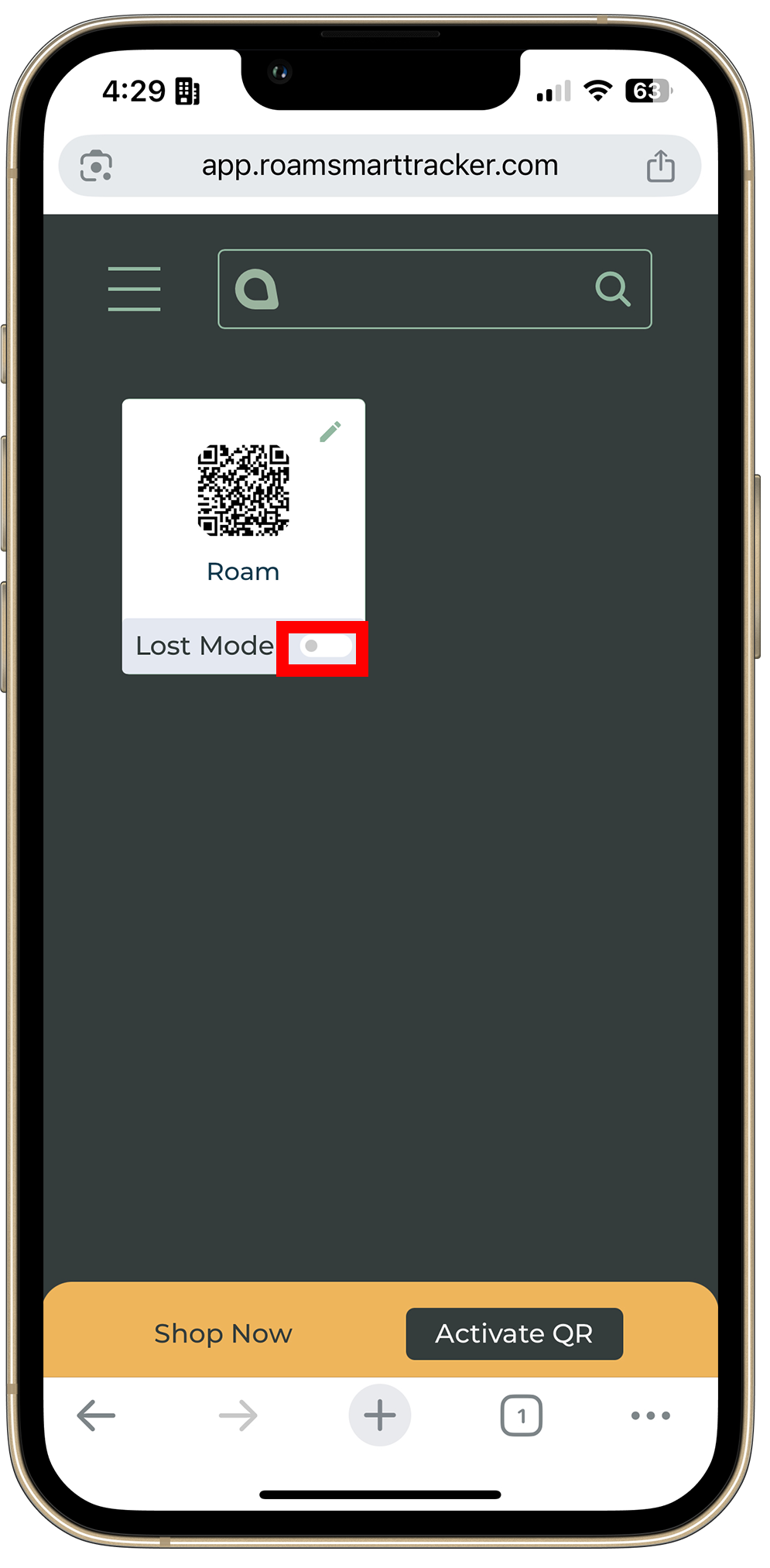
🔒 Privacy: Your contact details are only visible while Lost Mode is enabled.
Need Help?
Contact our support team at care@roamsmarttracker.com.